
Contents
- I'm being navigated to an "Unsafe" webpage URL when selecting a link from a review. Why?
- Why don't previously created custom questions appear in the autocomplete dropdown when I add a new question to a review step?
- Why do we see an error completing a review custom section with a ULN field?
- Will changing the format of a review template affect learners who've already completed it?
- Why isn't the ULN field in the PLR step automatically populated after using 'Get PLR' in Aptem Console?
- Why doesn't a learner see a 'signature required' drilldown, even though their review shows 'Awaiting Signature'?
- Is there a way to rename a document once a review is completed?
- A review PDF doesn't contain all review sections. What are the reasons for this?
- Why am I getting a 'blank' error after trying to save a document or review?
- Is there a way to add a review without the system also scheduling the review meeting?
- Why does the programme status revert after saving a review?
- A review was finished in error. Is there a way to edit it again?
- Why can't I see the signatures from all parties in the review document attached to a component?
- Why would an administrator or employer see an error message, for example 'This page is lost in space', when signing a review?
- A completed review component has been renamed, but the name in the Reviews page hasn't changed. Why?
- A learner can no longer access and sign a review document. Why?
- Do reviews need to be signed in a certain order?
- Can a review be edited and signed before the review date?
- Can signatures for reviews be cancelled to exclude them from reports?
- Why is a completed review missing the review document?
- A review has moved to 'Finished' with a status of 'Awaiting Signature' without selecting Save and Close or Finish. Why?
- Should reviews with a status of 'Awaiting Signature' show as 'In Progress' on the associated Learning Plan activity?
- An error appears when trying to sign a review document. Why?
- Why does a review status show as 'In Progress' even though it's been 'Completed'?
- I completed a review without answering the questions. Why does the PDF show the answers as 'No'?
- Why don't some completed reviews show in Aptem Console under the Reviews section?
- Why can't my learner access or edit their review in Aptem Console?
- What period does "since last visit" cover in the "Learner Progress" review step?
- Why can't I complete a review's "Action Plan" in Aptem Console?
- My review hasn't been signed by all three parties, but it's been archived. How can the remaining signatures be completed?
- What alternatives are there to single-line text boxes on a review?
- I'm unable to edit a review component. Why?
- In a review activity, what's the difference between the 'Complete by' and 'Due date' fields?
- An error appears when trying to start a review. Why?
- Is there a character limit for the comments sections in a review?
- Review/meeting components have been completed but aren't contributing to the learning plan progress. Why?
- I've generated a Commitment Statement, but the reviews are missing from the document. Why?
- Can I change the title of a custom heading on a review at programme level without affecting completed reviews?
- Can we add a hyperlink into a review?
- Why am I getting an error when trying to start a review? (duplicate question names)
- Will tutors and employers still be able to sign pending reviews if a learner moves to a new programme?
- Why can't a learner edit the fields in their review task?
I'm being navigated to an "Unsafe" webpage URL when selecting a link from a review. Why?
This can happen if a blank space was accidentally added to the beginning of the original link used when creating the review. Remove the blank space, or replace the link, in the review template via Programme Builder to resolve this.
Why don't previously created custom questions appear in the autocomplete dropdown when I add a new question to a review step?
Custom questions only appear in the autocomplete dropdown when the name (title) of your custom review step matches the name of an existing review step used on any programme within your tenant.
Each review-related custom section has its own separate question collection. When you enable a custom review step using the name of an existing step, any questions previously created for that step become available in the autocomplete dropdown.
If you create a custom review step with a new, unique name that doesn't match any existing review step, there's no associated question library to draw from. In this case, you need to create all questions for that step from scratch.
Why do we see an error completing a review custom section with a ULN field?
Check the review configuration to see if the field type used to collect the ULN value is 'Numeric'.
If it is, this is the cause of the error: a 'Numeric' field has a maximum value of 2,147,483,647, because it's an int32 value type. If the entered ULN exceeds this maximum, you'll see the error.
If you're using a 'Text' field to collect the ULN instead, you won't encounter this error.
Will changing the format of a review template affect learners who've already completed it?
We strongly recommend you don't change any review template currently being used on a programme by live learners. Changes to the review's configuration effectively change the existing review for any learners who've completed it, and any data stored in the previous version is lost.
The best way to change a review that's already in use is to create a new review, or clone an existing one, make the changes you need, and then add the review to the relevant learners.
Why isn't the ULN field in the PLR step automatically populated after using 'Get PLR' in Aptem Console?
When you select the 'Get PLR' button within the PLR step of the review, the system retrieves the learner's ULN. However, when you return to the review page, the ULN field doesn't automatically update with the retrieved ULN: a manual page refresh is required to display it. This behaviour is intentional.
The default ULN remains visible until you manually refresh the page.
Why doesn't a learner see a 'signature required' drilldown, even though their review shows 'Awaiting Signature'?
When a review moves to 'Awaiting Signature', this means the review is complete and signatures are pending. The administrator may or may not have generated the PDF at this point. The administrator must generate the PDF before the learner is prompted to sign it. If the PDF hasn't been generated, the learner won't see the 'Signature Required' status in the 'Requires Attention' drilldown on their dashboard.
Selecting Finish doesn't automatically add the tutor or administrator's signature. They must apply their signature before generating the PDF. If they generate the PDF without applying signatures, they can still sign it later.
Is there a way to rename a document once a review is completed?
No, you can't rename documents on completed reviews.
A review PDF doesn't contain all review sections. What are the reasons for this?
This can happen for the following reasons:
Reason 1
The review section is a custom questionnaire linked to an Onboarding Wizard step that's been removed from the Onboarding Wizard.
If this has happened, you'll need to re-apply the link between the review section and the Onboarding Wizard step. Check that the Onboarding Wizard step is enabled or recreated.
Then go to the review section configuration and select the correct Onboarding Wizard step from the dropdown.
Reason 2
The review is configured at programme level with sections hidden from one or more participants.
These sections aren't visible in the review profile or the PDF, so those participants don't have access to that data. This means there are two versions of the document: one with the full review and administrator signature, and one with the other participant's signature and only the sections visible to them.
The first generated version of the document, with all sections, is accessible in the associated learning plan component. The final signed document includes the sections configured to be visible to the last signee. For example, if a participant signs the document last, the final version in the Review Documents section of the learner's profile shows sections hidden from that participant, and so on.
Why am I getting a 'blank' error after trying to save a document or review?
Here's an example of the blank error message that may appear:
If this happens, there may be special characters combined in the document or review that are causing an internal system error. Check all text fields to make sure there's a space between special characters, especially the combination /*.
If you need these characters together, insert a space to separate them, for example / *.
Examples of special characters to check:
! @ # $ % ^ / & * ( ) , . ? " : { } | < >
Additional cause: hidden formatting copied from an external source
This issue can also be caused by hidden attributes copied or dragged from an external source, such as a web page, Word document, or email, into the Instructions field of a learning plan component. When the review type has the Learning Plan section enabled, these hidden elements can carry into the review document, causing PDF generation to fail.
Resolution steps:
- Identify the learning plan component where the Instructions content may have been sourced externally.
- Copy the existing text from the Instructions field into a Word document. This keeps the visible formatting while stripping hidden elements.
- Remove all text from the Instructions field in the component.
- Drag and drop the cleaned text from the Word document back into the Instructions field.
- Save the component configuration.
- Return to the review and complete it. The review PDF should now generate successfully.
For learners already affected:
Apply the fix to one learner first, then use Learning Plan synchronisation to propagate the change to other affected learners. See: Learning plan synchronisation.
For new learners:
Update the component configuration in the programme build so newly enrolled learners don't encounter this issue.
Is there a way to add a review without the system also scheduling the review meeting?
All reviews are, by design, linked to scheduled tasks for both administrators and learners. If a review hasn't been scheduled, the system automatically creates the schedule and tasks when the review starts.
There's no way to turn off scheduling for a review, but you can pre-schedule it as "All day" instead of at a specific time.
Why does the programme status revert after saving a review?
This happens when the 'Programme Status Selector' section is configured within the review, and the status is set accordingly (as shown below).
When this review is completed (after the review document has been signed by all parties, and the review and component both have a Completed status), the programme status changes to match the one set within the review. This is expected behaviour.
Changes to the programme status triggered by the 'Programme Status Selector' section are recorded in the Audit History.
A review was finished in error. Is there a way to edit it again?
Once a review has been 'Finished' and has a status of 'Awaiting Signature', the only way to make it editable again is to have it signed by all parties first, which sets the status to 'Completed'.
Once that's done, select the context menu and choose 'Edit Review', which sets the status back to 'Planned' and allows further editing.
Why can't I see the signatures from all parties in the review document attached to a component?
System behaviour here works as follows:
- The learning plan component shows the first version of the review document as evidence.
- The Documents section of the learner's profile in Aptem Console shows the most recent version of the document.
- In the Review Documents section of the learner's profile in Aptem Classic, you can view all versions of the document.
Why would an administrator or employer see an error message, for example 'This page is lost in space', when signing a review?
If an administrator or employer sees an error message when signing a review, check the Positions field on their user profile. Multiple tags in this field, as shown below, can prevent them from applying their signature.
To resolve this, edit the user profile and remove any additional tags from the Positions field, so that only a single job role remains.
A completed review component has been renamed, but the name in the Reviews page hasn't changed. Why?
This is expected: the name on completed reviews doesn't change even when the component is renamed.
The change only reflects in the review if it's still in a 'Planned' status. If you want to manually rename the review instance, you'll need to move it back to 'Planned' status first, then rename it via 'Edit Review'.
A learner can no longer access and sign a review document. Why?
This can happen when the review is linked to a sub-programme that's no longer applied to the learner's record.
Check whether this is the case. If so, re-applying the sub-programme to their record should let the learner access and sign the review again.
Do reviews need to be signed in a certain order?
There's no specific sequence for signing reviews. They can be signed by any party (learner, employer, or administrator) without a prescribed order.
Typically, the administrator completes the review, followed by the employer and learner completing their sections. The administrator then selects Finish, which generates the PDF document. The administrator can apply their signature at that point or later. Once the PDF is generated, it's available for both the learner and employer to sign.
Can a review be edited and signed before the review date?
Yes, provided the review is set up to allow the necessary people to sign and edit, they can edit, sign, and complete the review before the review due date.
Can signatures for reviews be cancelled to exclude them from reports?
If a review has been configured to require signatures at programme level and the review has been completed, there's no way to cancel or mark signatures as complete without obtaining signatures from all participants.
If the review is in progress or hasn't been started, you can amend the review configuration to exclude signatures.
Why is a completed review missing the review document?
If a user selects 'Save and Close' (rather than 'Finish') at the end of the review, no document is generated.
The document is only generated when the user selects 'Finish'.
So, to see the completed review document in the Review section, make sure you use 'Finish' rather than just 'Save and Close'.
A review has moved to 'Finished' with a status of 'Awaiting Signature' without selecting Save and Close or Finish. Why?
The system moves a review from 'In Progress' to 'Finished' once all review sections have been completed, even if 'Save and Close' or 'Finish' hasn't been selected. This is expected behaviour.
Should reviews with a status of 'Awaiting Signature' show as 'In Progress' on the associated Learning Plan activity?
Yes. Reviews with a status of 'Awaiting Signature' have an associated Learning Plan activity with a status of 'In Progress', regardless of the completion mode ('Tutor decides' or 'All evidence accepted').
An error appears when trying to sign a review document. Why?
This error is usually caused by a configuration issue. Check which steps are enabled for the review. There should be at least one Learning Plan component available within an active learning plan if 'Learning Plan' and 'Learning Progress' sections are enabled for the review.
Why does a review status show as 'In Progress' even though it's been 'Completed'?
This can happen for a few reasons, including:
- The review was manually reopened for editing.
- A new review section was added.
- An existing configuration was edited at programme level.
In each case, resolve this by going into each section manually, selecting Save again, and finishing the review.
I completed a review without answering the questions. Why does the PDF show the answers as 'No'?
This is normal system behaviour: unanswered questions show as 'No'.
Why don't some completed reviews show in Aptem Console under the Reviews section?
The Reviews section in Aptem Console only shows reviews for the current episode or programme the learner is enrolled on, not reviews from any previous episodes or programmes.
Aptem Classic, however, shows all reviews from all programmes, including previous programmes the learner was enrolled on.
Why can't my learner access or edit their review in Aptem Console?
Reviews are designed to be accessed primarily from the Reviews grid in Aptem Console. Learners can only access or edit a review if it's been configured for them to do so in Programme Builder.
What period does "since last visit" cover in the "Learner Progress" review step?
This section shows any learning plan evidence items uploaded, against any component type, between the previous review being started and the current review being started.
If the current review was started earlier than the previous review, the earlier start date is used.
Why can't I complete a review's "Action Plan" in Aptem Console?
The Action Plan step of a review is now a deprecated function and can only be completed in Aptem Classic.
My review hasn't been signed by all three parties, but it's been archived. How can the remaining signatures be completed?
If a change is made to a review, that document no longer exists.
For example, the review in the learner's learning plan has the 'Employability/Wider skills/Progress' section, but the current programme doesn't have this section. Because the review template has changed, the document that was signed no longer exists, and it's now archived.
This means the earlier review no longer exists and can't be signed by any parties.
What alternatives are there to single-line text boxes on a review?
When you configure the review at programme level, you can choose from a range of options in the dropdown list.
The "Text multiline" format creates a section where any text entered is visible in full.
I'm unable to edit a review component. Why?
If you can't edit a review component in either Aptem Console or Aptem Classic, and you've confirmed your permissions are correct, this may be because the task associated with the review has been marked as 'Not Complete'.
This option is exclusive to reviews created within Employ – Restart programme types. Any administrator who can manage learning plan content can select it by choosing the three dots next to a component in the tutor console and selecting 'Mark as Not Complete'.
Note: this option is only available for components set to 'Tutor Decides', and it prevents the component from being amended at all.
Once an activity has a status of 'Not Completed', you can't change the status. To resolve this, remove and recreate any review components set to 'Mark as Not Complete' from the learning plan.
For more on this option, see Marking an activity as 'Not Completed'.
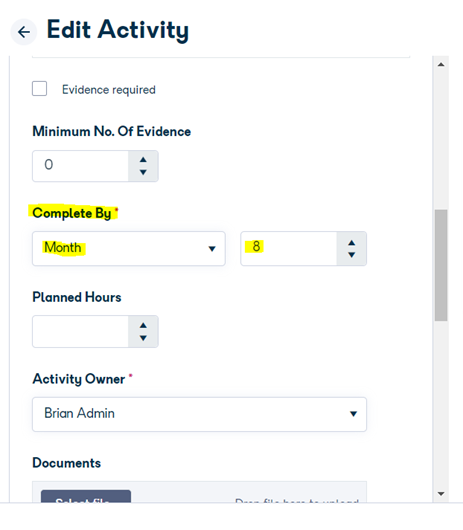
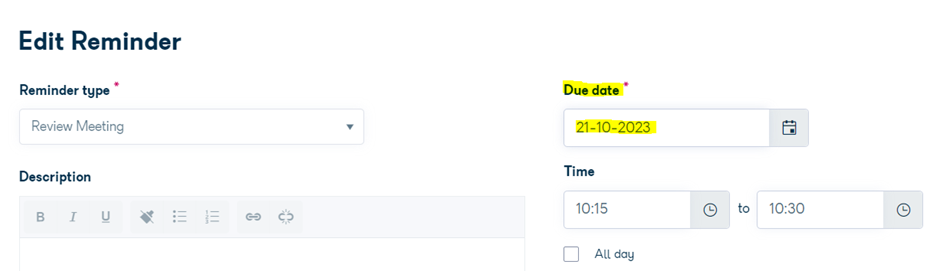
In a review activity, what's the difference between the 'Complete by' and 'Due date' fields?
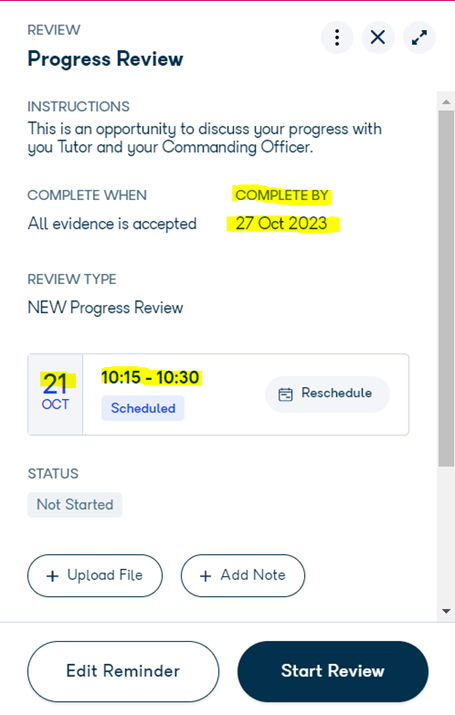
The 'Complete by' date is set at activity level (Edit Activity).
The 'Due date' is set in the reminder when you schedule the review, and can be viewed by selecting 'Edit Reminder'.
An error appears when trying to start a review. Why?
This can happen if a review type used in programmes with enrolled learners is removed.
We recommend you don't remove any review types in Programme Builder, as this affects all reviews using that type, whether completed or not.
If the original review type is removed and then re-added, this doesn't resolve the problem, because the link between the review and the review component is no longer valid.
The best way to resolve this is to review all review components in Programme Builder and make sure they refer to the correct review type, then save the programme.
You can test this by picking one learner the programme has been applied to, reviewing all learning plan review components for that learner, and making sure they refer to the correct review type. Then sync to the remaining learners on the programme.
Is there a character limit for the comments sections in a review?
Yes, the character limit is 3,700. If you enter more characters in a comment box, an error appears. To resolve this, shorten the response to 3,700 characters or fewer.
Review/meeting components have been completed but aren't contributing to the learning plan progress. Why?
These components, by design, don't contribute to the learning plan progress percentage.
I've generated a Commitment Statement, but the reviews are missing from the document. Why?
This happens because the review type(s) were removed. The link between the review type and the reviews is lost, so the review type is missing in the Reviews component of the learning plan and doesn't populate in the Commitment Statement either.
To resolve this, update or select the correct review type in all Reviews components in the learning plan for an individual learner (explicitly select the review type from the dropdown, as it defaults to showing the first one in the list), then use the synchronise components function to sync these changes across all learners on the programme. See the screenshot below.
Also update the review type in the Learning Plan token: go to Programmes tile → select programme → Edit → Learning Plan token → edit each Reviews component → update the review type. This makes sure new learners enrolled onto the programme won't face this issue. Once updated, the review type populates in the Commitment Statement. See the screenshot below.
Can I change the title of a custom heading on a review at programme level without affecting completed reviews?
No, existing custom review sections shouldn't be amended once they're in use. This helps prevent data loss and protects the integrity of reviews that have already been completed.
If you need to fix a spelling error or make changes, create a new version of the review by cloning the existing template and amending it.
We also recommend not deleting existing questions and replacing them with new ones in a review template that's already in use, as this may affect previously completed reviews.
Can we add a hyperlink into a review?
You can't add an "active" hyperlink into an individual review. You can add the hyperlink text, but it won't be clickable in the review itself or the review document, so you'd need to copy and paste the text into a browser to use it. However, you can upload an attachment into the Documents section of the review component so it can be accessed from the learning plan.
Why am I getting an error when trying to start a review?
A possible cause is duplicate custom question names in the programme's review configuration. Aptem requires all custom question names to be unique within a review. If two questions share the same name, the review can't be started.
To resolve this:
- Go to Programme Builder for the affected programme.
- Open the Reviews configuration section.
- Check the custom questions for the review type showing the error.
- Rename any duplicate question names so each is unique.
- Save the changes and try starting the review again.
Will tutors and employers still be able to sign pending reviews if a learner moves to a new programme?
No. If a learner moves to a new programme before all required signatures are captured on their existing reviews, the tutor and employer lose access to those reviews. Reviews are tied to a learner's current programme, so once the learner moves forward, unsigned reviews on the previous programme are no longer accessible for signing.
If you still need to capture the missing signatures: move the learner temporarily back to their previous programme in Aptem Classic, collect the required signatures, then return them to the new programme.
To avoid this situation, we recommend collecting all review signatures before progressing a learner to a new programme.
Why can't a learner edit the fields in their review task?
If a learner opens a task linked to a review and all the fields are greyed out, this is expected: the task view is read-only.
To edit the review content, the learner needs to open the review itself, not the associated task. Tasks linked to reviews are for tracking purposes only and don't allow direct editing of review content.
Steps for the learner:
- Go to your Learning Plan.
- Locate the review entry directly, rather than opening the associated task.
- Select the review to open it in edit mode.
If the review fields are still unavailable after opening the review directly, the review may be locked pending a previous step in the workflow. Contact your tutor or administrator for help.